Paxy is the AI assistant in PAX for workflow or system help and authorized read-only ERP and CRM data questions.
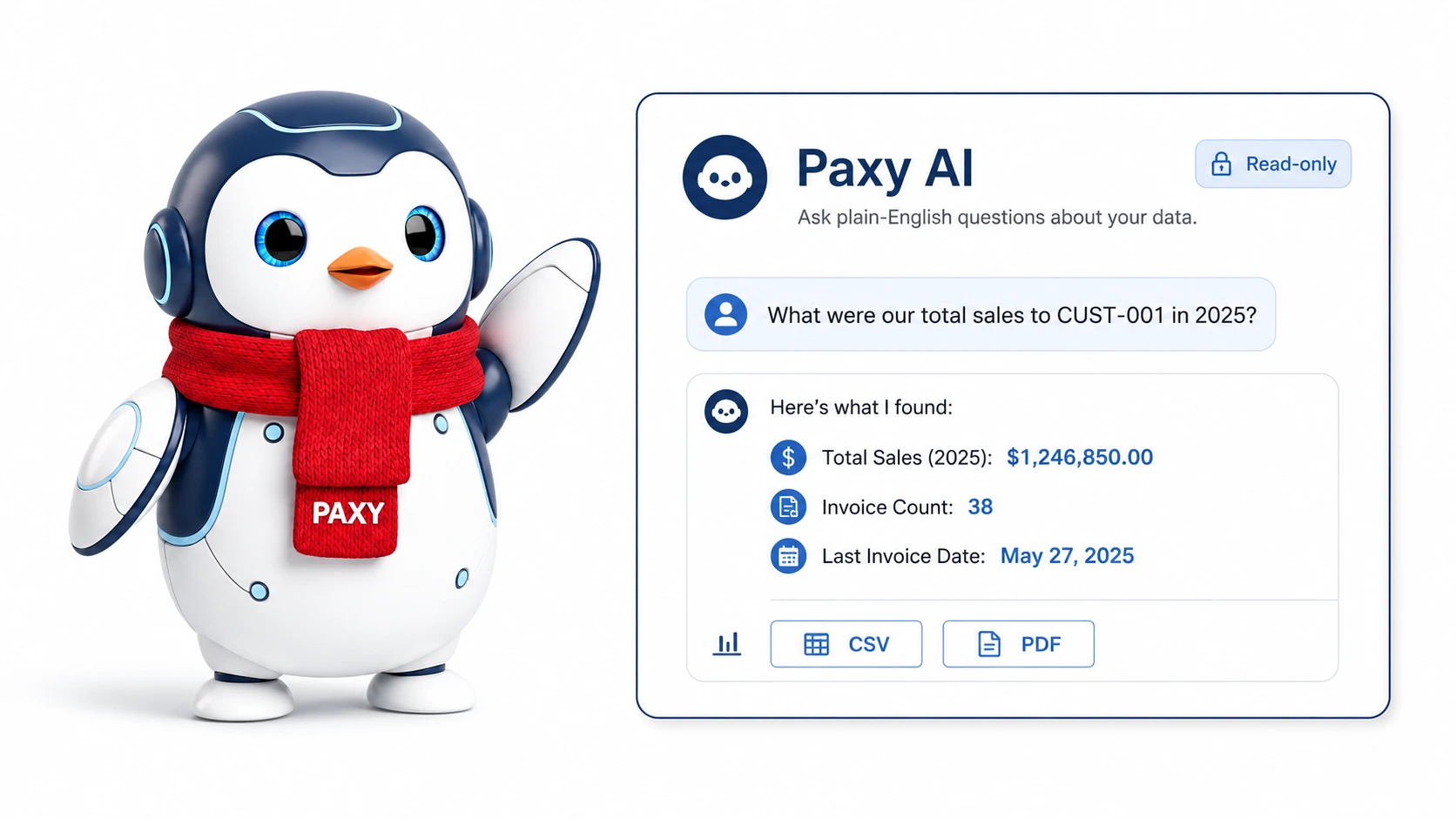
What Paxy is for
Use Paxy when you need help using PAX or when an authorized user needs a quick read-only report or summary from PAX data.
Paxy workflow help is best for questions about screens, reports, buttons, settings, and documented workflows, such as how to receive a purchase order, record a vendor payment, email an invoice, configure FedEx, or understand a report.
Paxy data reporting is best for focused questions about customer sales, invoice totals, order history, inventory lots, purchase receipts, vendor activity, work orders, shipments, returns, GL-related summaries, and similar cross-functional reporting questions.
Paxy is not a replacement for formal review, accounting close, inventory correction, or source-record workflows. Use Paxy to inspect, summarize, and find documented guidance, then verify important results in the normal PAX screens and reports.
Screen path
Dashboard > Paxy launcher
The Paxy launcher appears as a floating button on the left side of the main dashboard for all non-floor main-dashboard users. Users with floor access use the shop dashboard and do not see Paxy.
Who can use Paxy
Paxy has two access levels for main-dashboard users.
| Role | Workflow help | Data questions |
|---|---|---|
admin |
Yes | Yes |
executive |
Yes | Yes |
csr |
Yes | No |
sales |
Yes | No |
manufacturing |
Yes | No |
floor |
No | No |
Users with csr, sales, or manufacturing access can ask Paxy how to use PAX workflows and system features, but they cannot ask Paxy to look up or calculate tenant data. If they ask a data question, Paxy responds in the chat that data questions are currently limited to system admins and executives while role-based data question access is still under development.
What Paxy can do
Paxy can:
- Answer workflow and product-help questions from the published PAX support documentation.
- Provide source links to the support pages used for workflow-help answers.
- Answer data-report questions for
adminandexecutiveusers. - Use recent chat context to understand follow-up questions.
- Return a formatted answer with paragraphs, steps, or bullets when helpful.
- Show findings and notes when they add useful context.
- Show how many rows are in a data-report preview.
- Export supporting rows to CSV for data-report answers.
- Export a concise PDF findings report for data-report answers.
- Format timestamps using the user's browser timezone when possible.
Paxy can work across these data areas for authorized data questions:
| Area | Examples |
|---|---|
| Sales and CRM | Customers, prospects, quotes, sales orders, shipments, invoices, payments, returns, campaigns, and activity. |
| Manufacturing and Inventory | Parts, lots, inventory balances, adjustments, BOMs, routers, work orders, labor, completions, scrap, and cycle counts. |
| Purchasing | Vendors, purchase orders, receipts, vendor invoices, vendor payments, check runs, and purchasing summaries. |
| Accounting | Chart of accounts, journal entries, fiscal periods, payments, customer credits, AP/AR data, bank reconciliation, credit cards, depreciation, projects, and invoices. |
What Paxy cannot do
Paxy cannot:
- Create, edit, post, void, reverse, delete, receive, ship, invoice, pay, reconcile, or close records.
- Bypass role permissions or tenant isolation.
- Answer data questions for users who do not have
adminorexecutiveaccess. - Guarantee that a broad or vague question was interpreted exactly the way the user intended.
- Replace formal accounting, tax, inventory, costing, or audit review.
- Show generated SQL in the chat.
- Use undocumented workflows as a source for workflow-help answers.
- Save long-term chat history across page reloads.
Outputs
Paxy's output depends on the question type.
| Question type | What Paxy returns |
|---|---|
| Workflow help | Title, formatted answer, optional collapsed Details and Notes, and Sources links to public support pages. |
| Data report | Title, answer, findings, notes, row count, CSV, and PDF. |
| Casual message | A brief Paxy response without report rows or documentation sources. |
The chat does not display a large result table for data reports. Use CSV when you need to audit the supporting rows.
What happens behind the scenes
When a user asks Paxy a question, PAX:
- Checks that the user is logged in, belongs to the request tenant, and has a Paxy-enabled role.
- Classifies the question as workflow help, data reporting, or casual conversation.
- For workflow help, gives the AI the published documentation index so it can choose up to seven exact Markdown support pages.
- Validates that the selected documentation URLs are HTTPS, on
www.paxerp.com, under/docs/, and point to.mdpages. - Fetches only the selected Markdown pages and asks the AI to answer from those docs.
- Returns source links to the normal public support pages by removing the
.mdsuffix. - For data reporting, verifies
adminorexecutiveaccess before reading the tenant database, building schema summaries, generating SQL, creating export tokens, or running any query. - Builds a filtered schema summary for the relevant data areas.
- Asks the AI model for one read-only report query.
- Validates that the query is a single
SELECTorWITH ... SELECTstatement. - Runs the query in a read-only transaction with row, column, and timeout limits.
- Filters known private fields before rows are sent to the summary model.
- Returns a concise answer and export-ready result data.
CSV and PDF exports use the result Paxy already generated. They do not reinterpret the question.
Troubleshooting
I do not see Paxy
Likely cause: You are using a floor account, or your account does not have a Paxy-enabled main-dashboard role.
Safe fix: Use standard PAX docs or reports from the modules available to you, or ask an admin to review your assigned roles. Ask an admin or executive user to run a data question if appropriate.
Contact support if: You have admin, executive, csr, sales, or manufacturing access but the launcher is missing.
Paxy says it is not configured
Likely cause: The server is missing the AI configuration needed to connect to the AI provider.
Safe fix: Ask the system administrator to check the server AI configuration.
Contact support if: Configuration has been completed but Paxy still returns the setup message.
Paxy cannot find a matching help page
Likely cause: The question may not match a published support page, or the question may be too broad.
Safe fix: Ask again with the exact screen, report, button, or workflow name.
Contact support if: A documented workflow still cannot be found.
Paxy gives an unexpected answer
Likely cause: The question may be broad, missing an exact identifier, missing a date range, or interpreted against a different source than intended.
Safe fix: Ask a narrower follow-up question with exact customer, vendor, part, order, invoice, PO, work order, workflow, screen, or date-range details.
Contact support if: A precise question returns guidance or data that does not match the source records or support page.