PAX ERP Click Efficiency Study: 92.6% Within 3 Clicks
Date: May 22, 2026
Source: NEW PAX click-efficiency report
Scope: Clicks from the main dashboard. Login, typing, scrolling, field entry, placeholder buttons, and task-internal confirmation/detail steps are excluded.
Executive finding
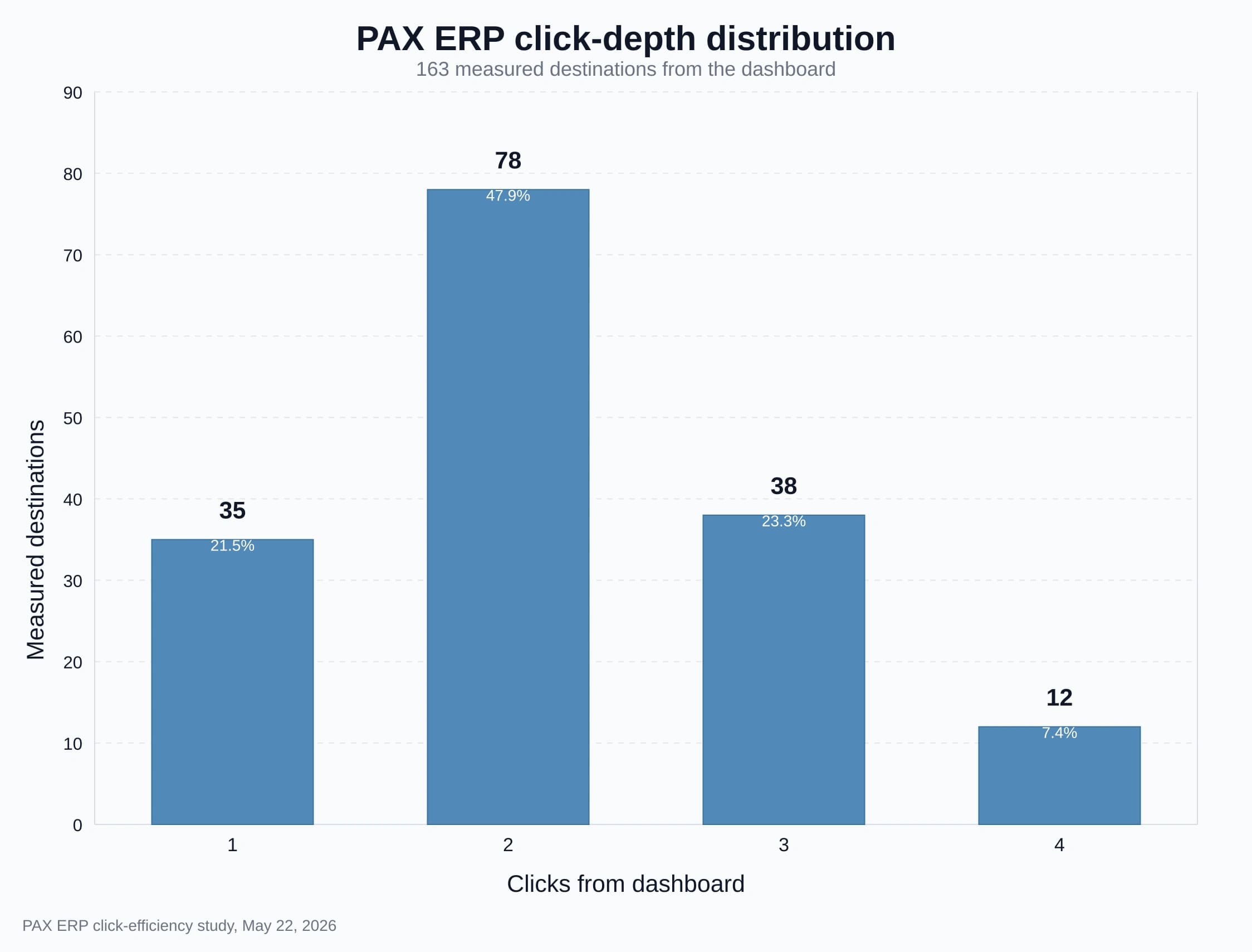
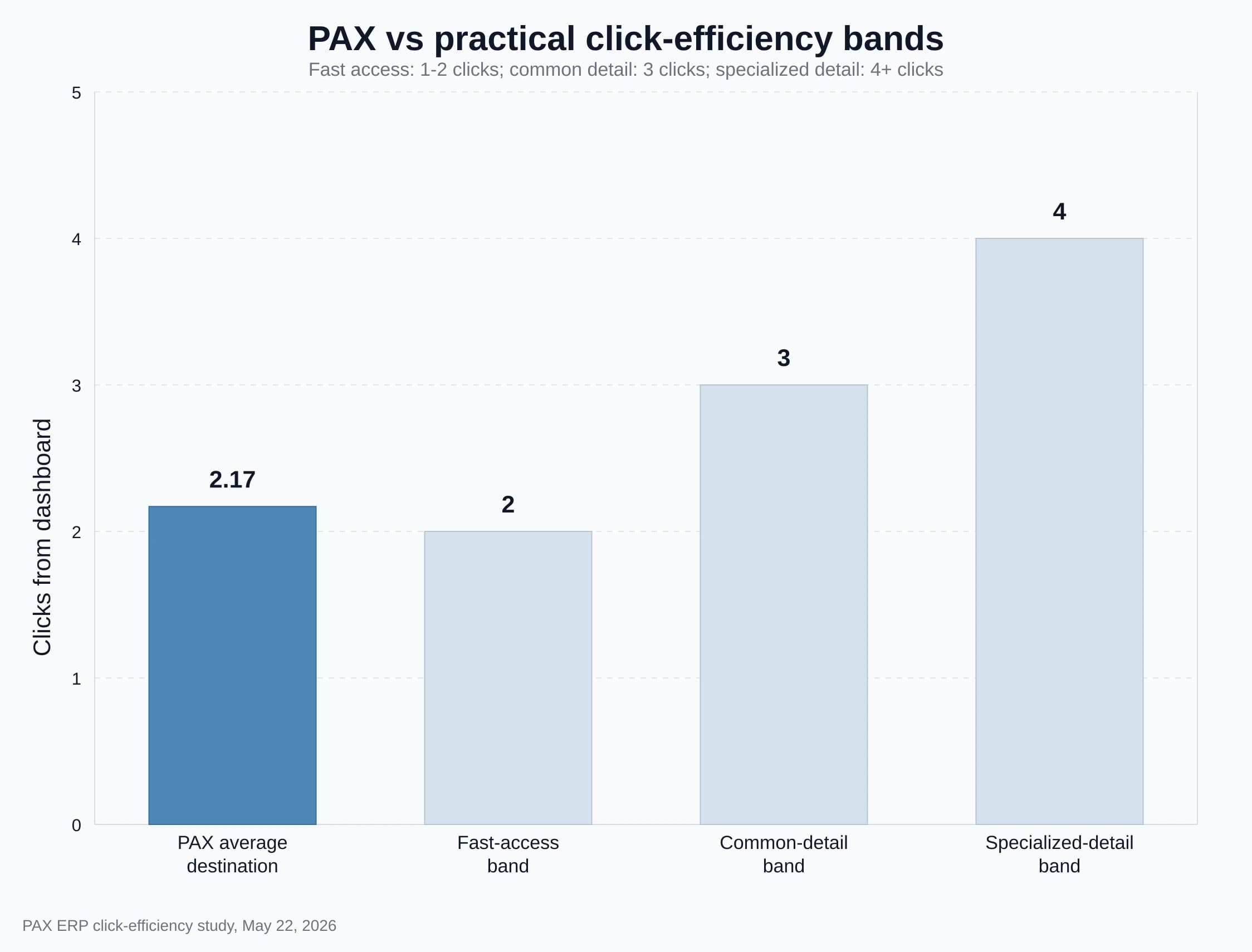
PAX ERP is organized around direct dashboard access instead of deep module trees. Across 163 measured destinations, the average destination is 2.17 clicks from the dashboard and the median is 2 clicks. 69.3% of destinations are reachable in 1-2 clicks and 92.6% are reachable in 1-3 clicks.
The result is a navigation model where the most common ERP destinations stay close to the dashboard. Higher-click paths are concentrated in a small set of detailed or contextual workflows, rather than spread across general navigation.
Summary metrics
| Metric | Result |
|---|---|
| Measured destinations | 163 |
| Average clicks | 2.17 |
| Median clicks | 2 |
| Maximum clicks | 4 |
| Reachable in 1-2 clicks | 69.3% |
| Reachable in 1-3 clicks | 92.6% |
| 4+ click measured routes | 7.4% |
Calculation basis after corrections: 35 destinations at 1 click, 78 at 2 clicks, 38 at 3 clicks, and 12 at 4 clicks. That gives a weighted average of 353 / 163 = 2.17 clicks.
View the measured destination mapSee the destination groups and representative paths behind the 163-route click-efficiency calculation.
This table is the measurement appendix for the study. It groups the 163 measured destinations by functional area and shows representative paths from the dashboard, including destinations that share a grouped route such as list / detail / action flows.
| Area | Destination | Path | Clicks |
|---|---|---|---|
| Manufacturing | BOM list | Manufacturing > BOMs | 1 |
| Manufacturing | BOM/router row details | BOM/Router > row | 2 |
| Manufacturing | Open work order list | Manufacturing > Work Orders > View Work Orders | 2 |
| Manufacturing | Work order detail | Work Orders > View Work Orders > View | 3 |
| Manufacturing | Work order materials/operations/outside services | WO detail > tab | 4 |
| Manufacturing | Issue materials queue | Manufacturing > Issue Materials | 1 |
| Manufacturing | Issue materials for work order | Issue Materials > Issue | 2 |
| Manufacturing | Lot-controlled material issue | Issue > Select Lots > Confirm | 4 |
| Manufacturing | Labor/completion queue | Manufacturing > Log Labor / WIP to FG | 1 |
| Manufacturing | Complete work order | Log Labor / WIP to FG > work order > Complete | 3 |
| Manufacturing | Where-used result | Reports > Where Used > select component | 3 |
| Manufacturing | Finished-good/component lot trace result | Reports > Trace > Run Trace | 3 |
| Inventory | Part list and stock summary | Inventory > Parts | 1 |
| Inventory | Part detail | Parts > expand part | 2 |
| Inventory | Historical lots | Parts > expand part > Show Lot History | 3 |
| Inventory | Inventory adjustment form | Inventory > Adjustments | 1 |
| Inventory | Cycle count session | Cycle Counting > category > Start/Continue/View | 3 |
| Sales | Create sales order | Sales > Create Order | 1 |
| Sales | Open sales order list | Sales > Open Orders | 1 |
| Sales | Sales order lines | Open Orders > expand order | 2 |
| Sales | Edit/print sales order | Open Orders > expand order > action | 3 |
| Sales | Customer detail | Customers > customer row | 2 |
| Sales | Customer full sales history | Customers > customer row > Sales Orders tab | 3 |
| Sales | Invoice list / lines / action | Invoicing / expand invoice / action | 1 / 2 / 3 |
| Purchasing | PO menu / new PO / open PO list | Purchase Orders / New / Open | 1 / 2 / 2 |
| Purchasing | PO lines/edit | Open Purchase Orders > expand/edit | 3 |
| Purchasing | Link PO to work orders | Open Purchase Orders > Edit > Link to Work Orders | 4 |
| Purchasing | Vendor detail/history/full history | Vendors > row > Purchase Orders tab | 2 / 3 / 3 |
| Purchasing | Historical vendor PO lines | Purchase Orders > PO Dashboard > search PO/vendor > Print PO | 3 |
| Purchasing | Receive PO / save receipt | Receiving > Receive > Save receipt | 2 / 3 |
| Shipping | Create shipment list / form | Create Shipment / Create Shipment | 1 / 2 |
| Shipping | Recent shipment detail / docs | View Shipments > View > action | 2 / 3 |
| Shipping | Shipping quotes | Shipping & Receiving > Shipping Quotes | 1 |
| Shipping | Returns workspace / RMA detail | Returns / Open Returns > View | 1 / 3 |
| Finance | Receivables/payables/banking/credit cards/GL menus | Finance > section | 1 |
| Finance | Invoice list / lines / action | Receivables > Invoices > expand/action | 2 / 3 / 4 |
| Finance | Bank reconciliation / chart of accounts / reports | Finance > section > function | 2 |
| Finance | Aging convenience drilldown to invoice detail | Reports > aging > expand row > invoice detail | 4 |
| CRM/HR | Prospects, pipeline, tasks, employees, attendance, payroll | CRM/HR direct cards | 1 |
| CRM/HR | Record detail / new quote / campaign history | row/action | 2 |
| CRM/HR | Quote report / campaign action | report/action | 3 |
| CRM/HR | Quote history lines | Quote Reports > Quote History > expand quote | 4 |
Findings
- PAX is strongest at first-level access. Core working areas such as Create Order, Open Orders, Invoicing, Customers, BOMs, Routers, Issue Materials, Labor/Completion, Parts, Adjustments, Create Shipment, View Shipments, Shipping Quotes, Vendors, Vendor Invoices, Vendor Payments, Receiving, CRM tasks, Employee Records, Attendance, and Payroll are generally 1 click from the dashboard.
- Most practical detail views land in 2-3 clicks. Row expansions, report selections, customer/order history, invoice lines, purchase order lines, shipment detail, receiving actions, and most finance/report destinations sit in the 2-3 click range.
- The highest-click paths are specialized and narrow. Only 7.4% of measured destinations require 4+ clicks, and some of those are convenience drilldowns rather than primary navigation paths. Invoice detail from aging, historical vendor PO lines, full vendor history, and customer full sales history all have faster primary routes through their related modules.
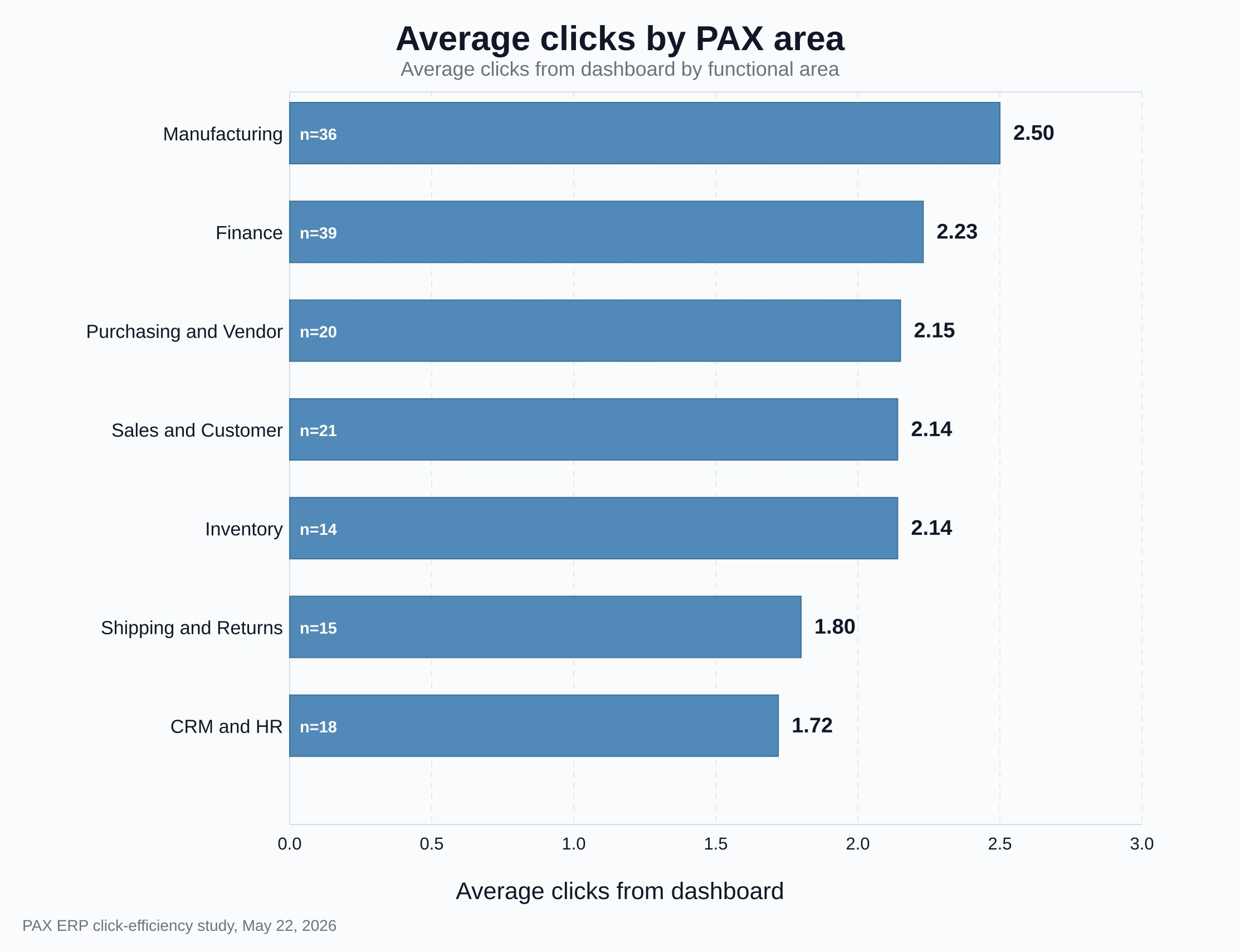
- Manufacturing detail is the clearest place for deeper context. Work-order materials, operations/labor, outside services, documents, and completed-work-order detail are still 4 clicks. A work-order summary panel could move the full job picture closer to 3 clicks.
Charts and comparison to practical standards
There is no credible universal ERP click-count standard. For comparison, this uses practical UX navigation bands: 1-2 clicks for fast access, 3 clicks for common detail access, and 4+ clicks for specialized detail workflows. Click count should not be treated as the whole usability score; usability also depends on task success, efficiency, user context, errors, and satisfaction.
Click-depth distribution
Average clicks by area
PAX vs practical click-efficiency bands
Bottom line
PAX has a defensible click-efficiency story: most common ERP destinations are available in 1-3 clicks, with direct dashboard cards doing most of the work. For manufacturers evaluating ERP usability, the main takeaway is that PAX keeps everyday workflows close to the dashboard while leaving room for deeper context in specialized manufacturing workflows.