QuickBooks Manufacturing Integrations: What Actually Syncs
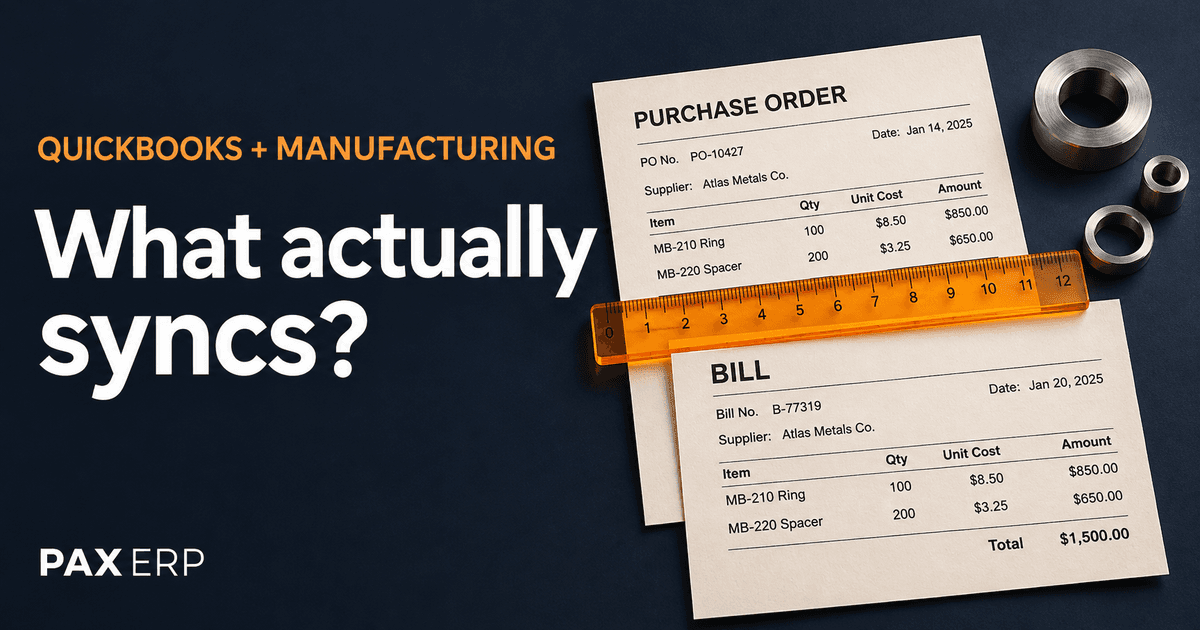
A manufacturing integration can send bills, customer invoices and inventory accounting entries to QuickBooks while keeping production details in the manufacturing system. The exact records, timing and direction depend on the connector and its settings. A successful invoice transfer tells you very little about whether partial receipts, unfinished production or corrections reach the books correctly.
If QuickBooks is working for your accountant, adding manufacturing software can be a sensible way to improve purchasing, inventory and production without replacing accounting. The useful question is how the two systems divide the work, and what your team still has to do between them.
First, confirm which QuickBooks you are keeping
QuickBooks Online and Desktop Enterprise need different integration arrangements. MRPeasy's native connector is for QuickBooks Online, not a local Enterprise company file. Choosing it while using Enterprise therefore includes an accounting migration, unless you establish another supported route. MRPeasy's QuickBooks overview explains that distinction.
The examples below examine MRPeasy and Katana's documented QuickBooks Online workflows, rather than rank products. They are documentation-based examples, not hands-on test results. For a broader shortlist, our QuickBooks Enterprise alternatives guide separates keeping Enterprise, moving to Online with an add-on, and replacing accounting.
Follow one small order through both systems
Here is a demonstration for a simple assembly business. It is hypothetical, with no starting stock, scrap, freight or tax:
- Order 100 brackets at $5 each.
- Receive 60 now; the remaining 40 are still due.
- Build 20 finished units, each using two brackets. For this simplified example, the brackets are the only purchased component.
- Add $100 of production labor and overhead to the batch's cost.
- Ship and invoice 12 finished units at $40 each. Keep eight in stock.
The expected quantities and values are straightforward:
| Point in the workflow | What the records should explain |
|---|---|
| After the partial receipt | 60 brackets on hand, worth $300; 40 brackets still due |
| After materials are issued | 40 brackets consumed, worth $200; 20 brackets remain, worth $100 |
| While production is unfinished | $200 of issued materials plus recorded production costs are accounted for as work in process under the example's costing approach |
| After all 20 units are completed | Finished goods cost $300 in total: $200 materials + $100 production costs, or $15 each |
| After 12 units ship and are invoiced | $480 customer invoice; $180 cost of goods sold; eight finished units worth $120 remain |
| Ending stock | $100 of brackets + $120 of finished units = $220, with no unfinished production |
The $400 of total cost introduced into this example, $300 of received materials plus $100 of production costs, ends up as $180 cost of goods sold and $220 remaining inventory.
Your own costing policy may differ. For the demo, the important part is agreeing on the expected result before clicking through it. Then you can see which event creates each record, which account receives the value, and when QuickBooks catches up.
Receiving 60 does not tell you how much was billed
The supplier might invoice the first 60 brackets for $300. Alternatively, the supplier could invoice all 100 for $500 before completing delivery. Those situations need different records even though the warehouse has received the same quantity.
MRPeasy documents separate receiving workflows: one invoice with multiple deliveries, multiple invoices tied to deliveries, or invoices and deliveries recorded separately. Its partial-receipt process preserves the unreceived quantity. The selected settings determine how your team records that first delivery. MRPeasy purchase-order documentation
Its QuickBooks connector then handles the accounting document separately. Saving the supplier Invoice ID triggers the configured purchase-document transfer. With several invoices per PO enabled, an incoming invoice is used to send a bill rather than sending the PO itself. MRPeasy integration manual
For the example, the demonstration should end with 40 brackets still due and a QuickBooks bill matching the actual supplier invoice. A connector that has sent $500 successfully has not necessarily recorded the right bill for a supplier who only invoiced $300.
A transferred bill may contain fewer details than the PO
Katana's documented Bill all action creates a QuickBooks bill from a purchase order. Its mapping sends line totals, but not separate quantity and unit-price fields. The PO's creation date becomes the bill date; expected arrival does not transfer. Bills require QuickBooks Online Essentials or higher. Katana purchase-order billing guide
That gives you a concrete test: compare the generated bill with the supplier's invoice, especially when it arrives weeks after you raised the PO. Can the person entering bills confirm the date, amount and terms without recreating the purchase in another system?
For a supplier billing only the first delivery, have the vendor show how it creates that partial bill in the configuration you would buy.
Production details and accounting entries serve different jobs
The manufacturing system needs to know which brackets were consumed, which job used them and whether the finished units are ready. QuickBooks needs the corresponding accounting values. It may receive summarized entries rather than the work order, BOM and every shop-floor action.
MRPeasy's optional inventory synchronization posts daily summary journals covering receipts, material consumption, production, shipments and adjustments. This can include work in process, finished goods and cost of goods sold. It is a separate layer from document transfers, which run on a different schedule. Its manual warns against simultaneously tracking the same inventory in QuickBooks when that inventory synchronization is enabled. MRPeasy integration manual
Katana's stock-sync configuration can send manufacturing operation costs and cost of goods sold. Its guide also describes manual journals when subassemblies need separate accounting in QuickBooks. A business using those separate accounts should include that work in its evaluation. Katana stock synchronization guide
In our example, pause before completing production and look for the unfinished job's value. Then complete it and inspect the $300 finished-goods balance. If the accounting system shows one combined inventory account, the manufacturing reports should explain its composition. If your accountant needs separate raw-material, WIP and finished-goods accounts, the demonstration should show how those balances are maintained.
A daily summary can work perfectly well for accounting. You need to know when to compare the reports, and where to find the underlying job details when a number looks wrong.
Shipping, invoicing and payment each need a clear trigger
The example's first shipment contains 12 units, so its invoice is $480 and its production cost is $180. The eight units left behind still belong in inventory.
Katana documents partial invoicing of packed or delivered items. Its invoice mapping includes quantities and unit prices, unlike its purchase-bill mapping. For partial invoicing, the guide describes inventory entries tied to the invoiced delivery; it also describes different full-order triggers elsewhere on the same page. Partial shipping and invoicing therefore deserve a demonstration together, with the relevant settings visible. Katana sales-invoice guide
The demo should end with the customer invoice, the remaining order quantity, the inventory reduction and the accounting cost all visible. After recording a customer payment, the salesperson should be able to find the current payment status wherever your team expects to work. Record which system owns that payment and how long the status takes to return to the other one.
What happens when a transfer fails or something changes?
A small team needs a workable repair process. If an invoice appears to time out during transfer, someone should be able to establish whether QuickBooks received it before creating another copy.
Intuit provides a connected-integrations view with connection status and suggested actions for issues. That is a useful starting point, but a healthy connection still needs to be checked against the documents and amounts you expected to transfer. Intuit's integration troubleshooting guide
Recovery also depends on what happened. Katana explicitly says actions taken while its QuickBooks connection is disconnected will not be sent retroactively when reconnected; manual updating may be needed. That documented disconnection behavior should not be assumed to describe every temporary error. Katana connection guide
Corrections can cross the boundary too. Katana documents deleting an integrated bill in QuickBooks to reset its billing status in Katana, with a delay before the status returns. That is a product workflow to understand, not a recommendation to delete posted accounting history. Katana deletion guide
Before choosing a system, bring one correction from your actual business: a supplier price change, an extra freight charge, a returned product or an incorrectly recorded receipt. Have the vendor show the correction through both systems, including what happens if the original month is closed. The person who will run your books should be part of that conversation.
You should leave knowing who checks failures, where unresolved records appear and which support team takes responsibility when the two systems disagree.
Keeping QuickBooks versus bringing accounting into ERP
Keeping QuickBooks can preserve a familiar accounting process while adding the production tools you need. The ongoing work is maintaining the connection, understanding the mappings and reconciling the results. A few clearly owned steps may be a reasonable trade for avoiding an accounting migration.
An integrated ERP takes a different approach. PAX includes manufacturing alongside receivables, payables, banking, general ledger and financial reporting, rather than positioning QuickBooks as its accounting destination. You can review the scope in our finance documentation. It is worth evaluating if you are open to moving accounting as well as operations.
One system still needs accurate opening balances, consistent transaction entry and a proper close. Our inventory-to-general-ledger reconciliation example shows why that work remains relevant.
For a small business, the better choice is the arrangement your team can operate reliably. By the end of the demo, you should be able to explain the remaining 40 brackets on order, the eight finished units in stock, the $480 invoice and the $180 cost of goods sold without an unexplained spreadsheet adjustment. That is a much stronger basis for choosing software than a promise that it “syncs with QuickBooks.”