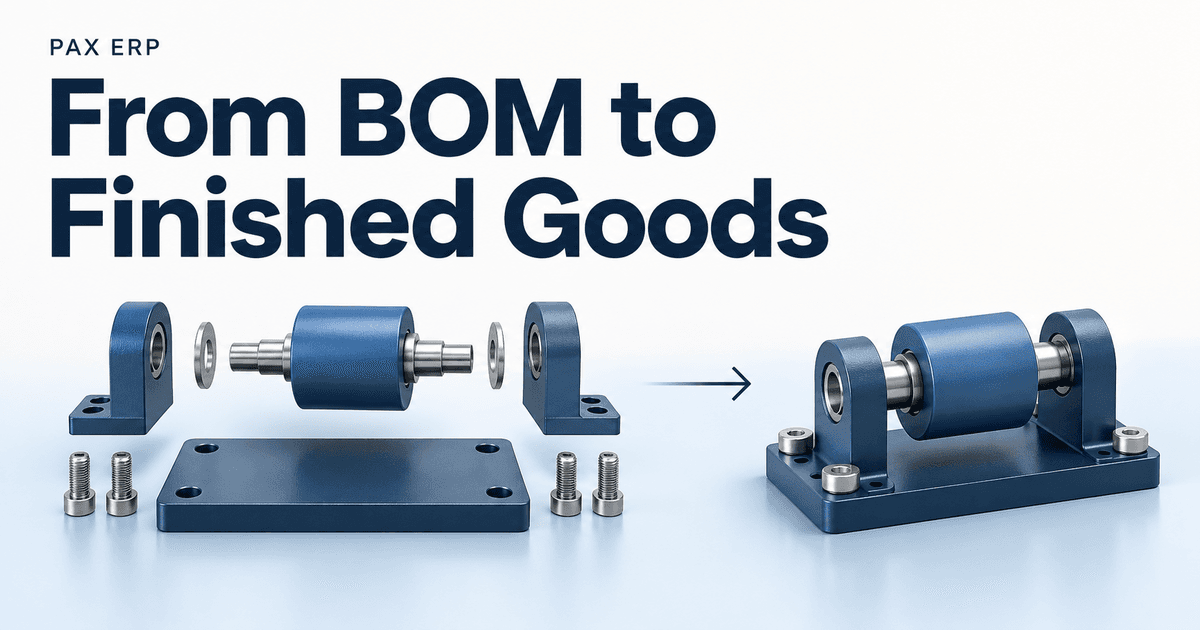
What does running a build in PAX look like? Here we follow a 10-unit work order, from checking the BOM to receiving the finished lot and reviewing its cost.
The BOM and the build quantity
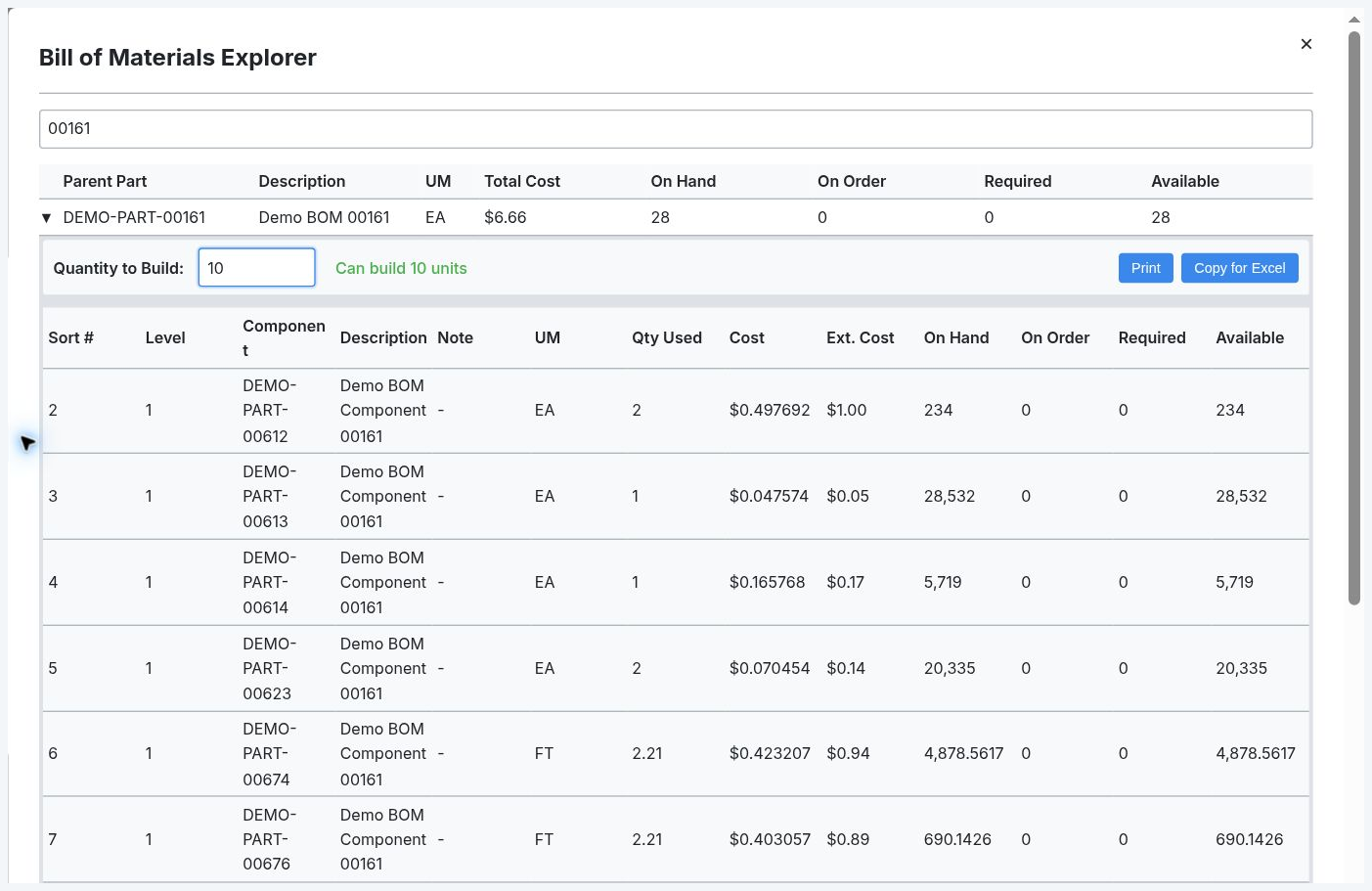
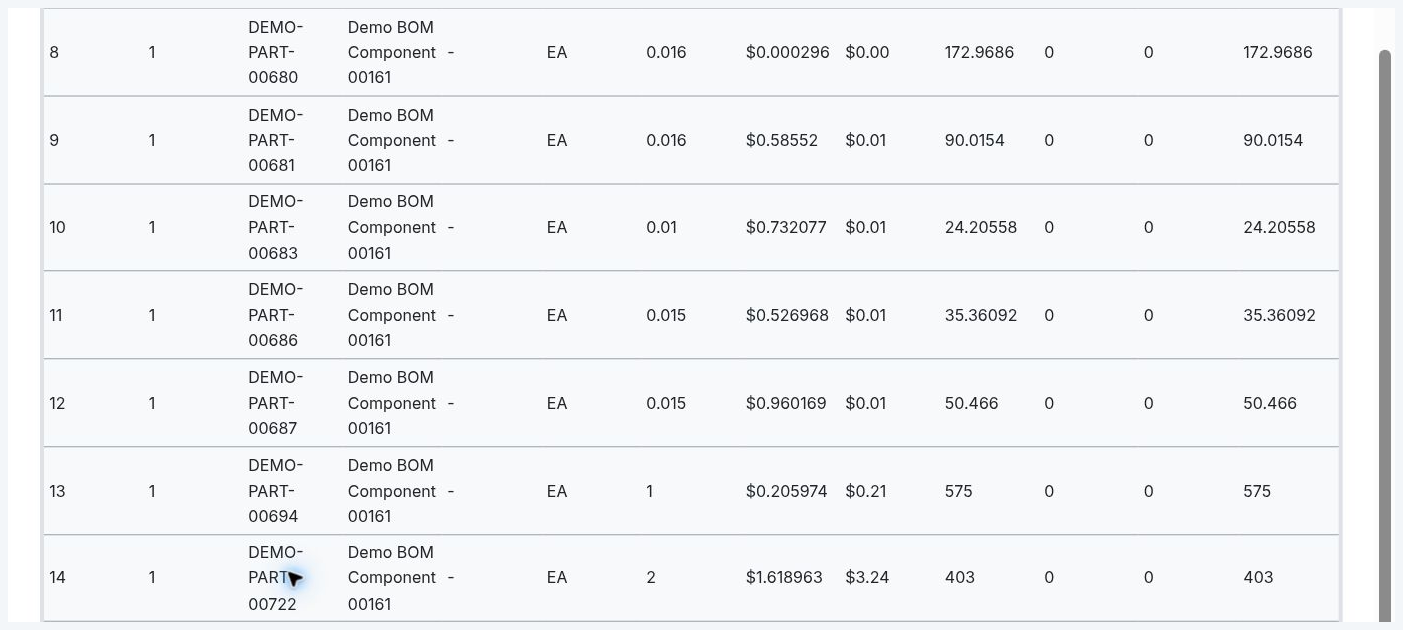
The BOM Explorer shows what goes into a finished part: its components, the amount of each used per unit, and their stock and cost figures. The part we're using, DEMO-PART-00161, already has a BOM and a router defining its manufacturing operation.
Entering 10 in Quantity to Build checks the components against that build. PAX shows Can build 10 units. The Qty Used column stays per unit: a component listed at 2 will need 20 for this job. The batch quantities appear in the work-order form next.
 Open full size
 Open full size
Turning the build into a work order
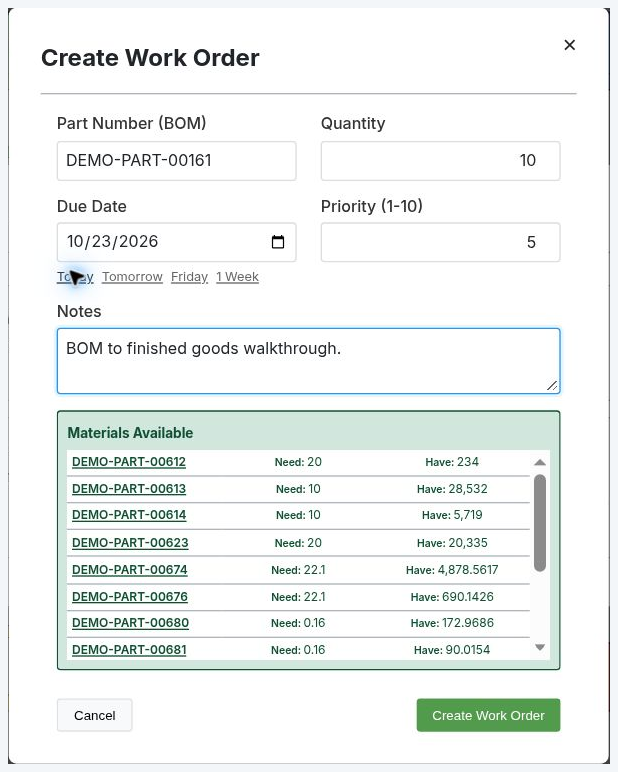
From Work Orders, New Work Order opens the form below. We choose the part, enter a quantity of 10 and set the due date. There are also fields for priority and notes to carry instructions with the job.
The Materials Available panel checks the proposed order against stock. Need is the requirement for the whole batch; Have is the quantity on hand. For the first component, that is 20 needed and 234 on hand. The list can be scrolled to check the remaining components before creating the order.
 Open full size
Selecting Create Work Order saves the job and assigns its number, WO-20260067. It starts in Draft, with the planned labor operation brought over from the router. The job is now ready for material issue.
Choosing the material lots
Opening the job in Issue Materials brings up its component requirements and proposed lot allocations. This is where the person supplying the job checks that the quantities and lots match what is being pulled from stock.
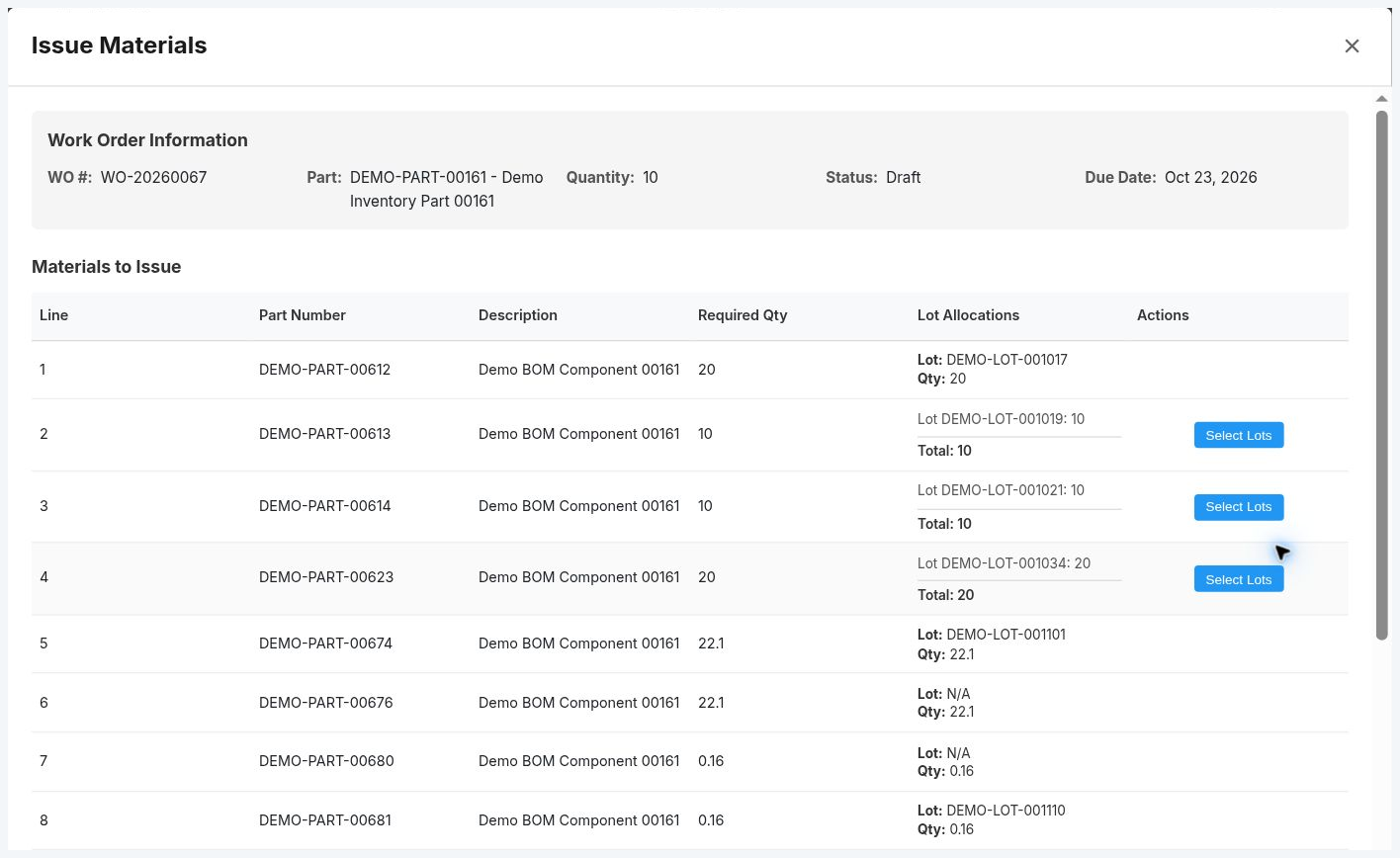 Open full size
Select Lots shows the available stock lots, quantities and costs. Allocate Qty can be adjusted to take material from the appropriate lots. Here, all 10 of this component come from DEMO-LOT-001019; the second lot is left untouched.
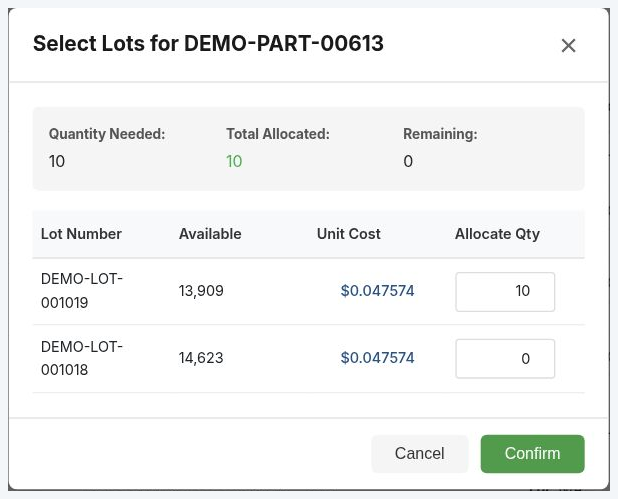 Open full size
Confirm returns that selection to the issue form. Once the allocations are ready, Issue Materials posts them. The order becomes Released, and the first component's stock drops from 234 to 214, matching the 20 issued.
The material cost recorded on the job is $74.37, based on the lots actually issued. That cost is now in work in process, or WIP, while the build is underway.
Adding the time worked
The job's labor operation appears in Log Labor / WIP to FG. Its router supplies 2.75 standard hours for this quantity. Through Enter Labor, we select the employee and record 2.50 actual hours as Production time.
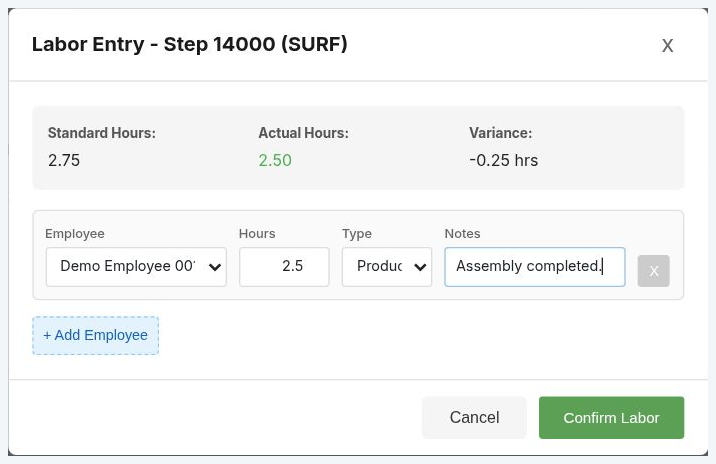 Open full size
Confirm Labor returns the entry to the main form. We use Save Labor Only to post it without receiving the finished product yet. The saved job now carries $91.50 in labor and $95.00 in overhead, alongside the material cost.
Receiving the finished lot
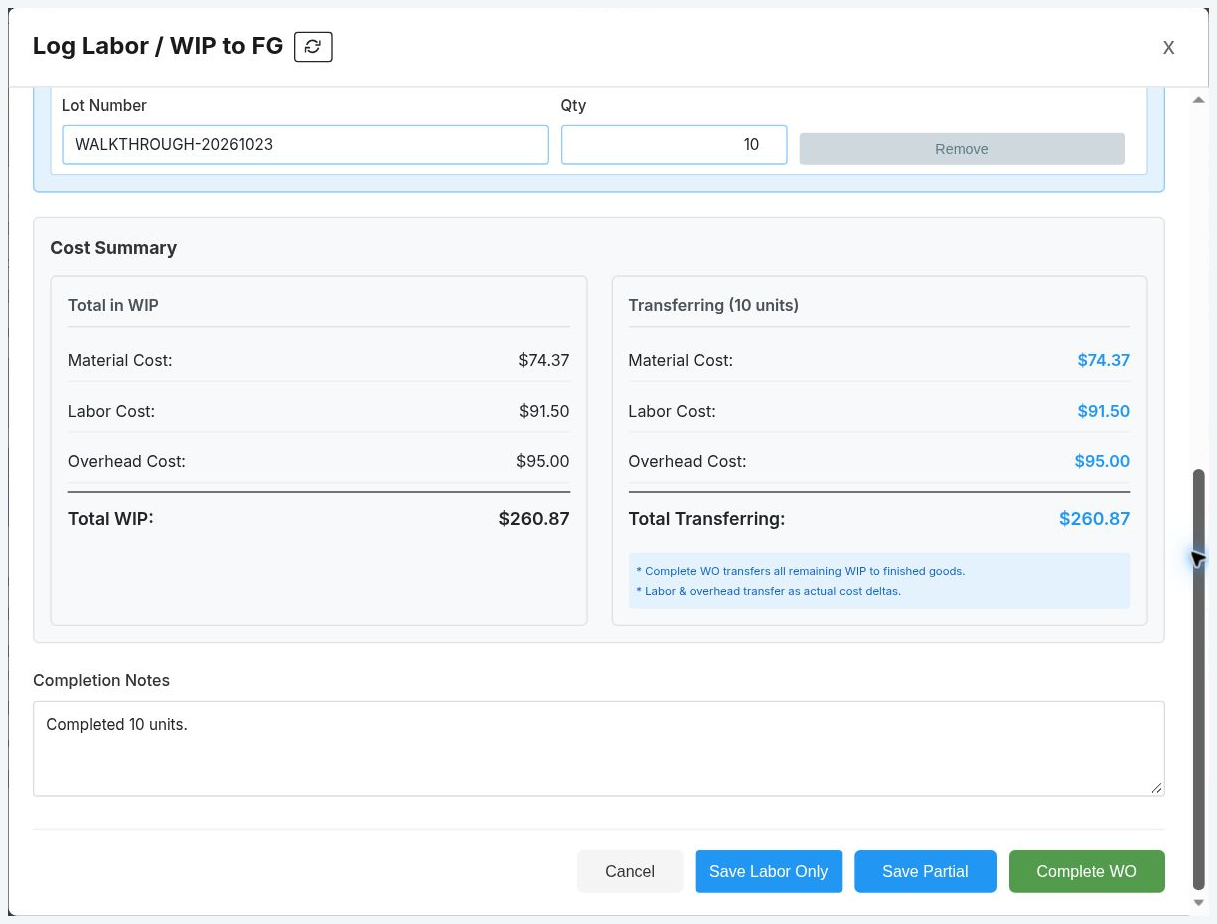
Once the 10 units are ready, the same form handles completion. Quantity Completed is 10, and we enter a new finished-goods lot, WALKTHROUGH-20261023, with a quantity of 10. The Lots: 10 / 10 total confirms that the lot allocation matches the quantity being received.
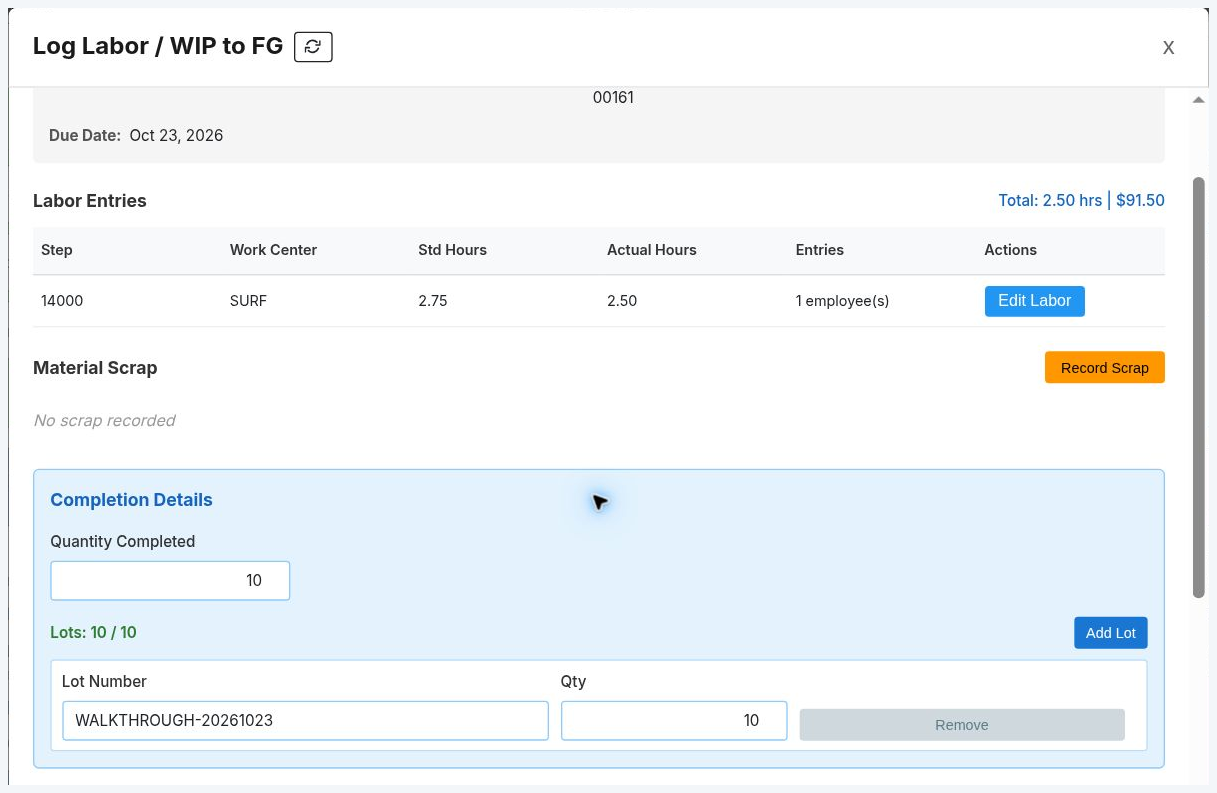 Open full size
Below those fields, the cost summary shows what will move from WIP into finished inventory: $74.37 of material, $91.50 of labor and $95.00 of overhead, totaling $260.87.
 Open full size
Because the whole job is finished, we use Complete WO. If only part of the order were ready, Save Partial would receive that quantity while leaving the order open.
The finished stock and its cost
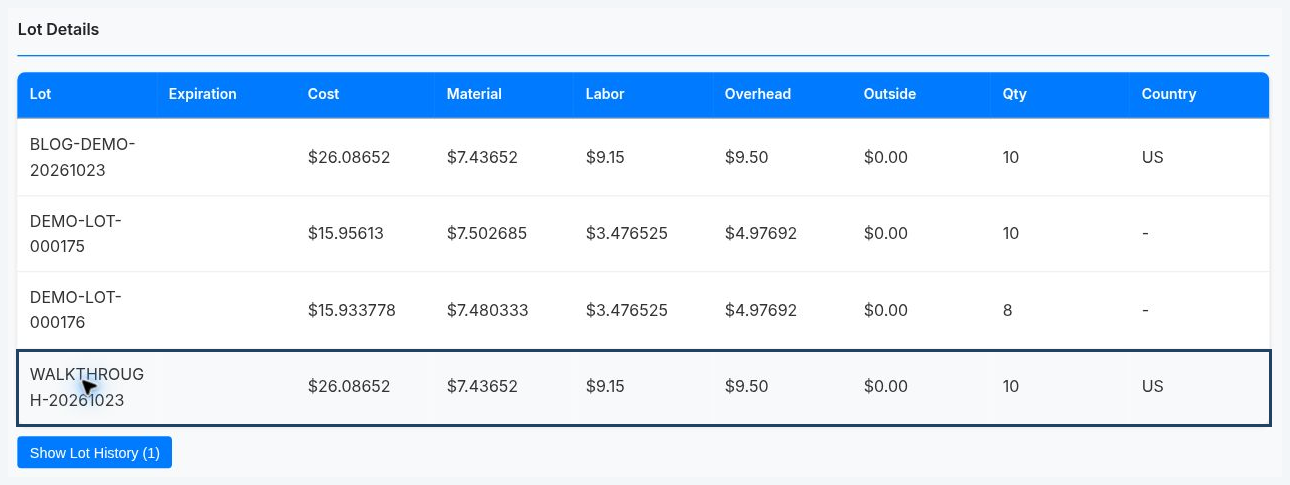
The completed order is available in View Work Orders under Completed. In Inventory > Parts, expanding the finished part shows the new lot and its cost breakdown.
 Open full size
Finished stock has increased from 28 to 38. The new lot holds the 10 units at a stored cost of $26.08652 each, about $26.09 rounded to cents. The lot view keeps more precision than the two-decimal totals shown on the work order.
The work order retains the material and labor records behind the $260.87 job cost. Its remaining WIP is zero, and the received lot carries the material, labor and overhead breakdown into inventory.
Once the build is finished, you can still see which material lots went into it, the time recorded and how the cost was calculated. Those details are useful when you’re checking a margin, tracing a component or preparing to quote the job again.
Want to see how PAX would handle what you make? Tell us about your products and production process, and we can walk through it together.