The CRM section is where users manage prospects, quotes, sales opportunities, follow-up activities, email campaigns, and CRM reporting.
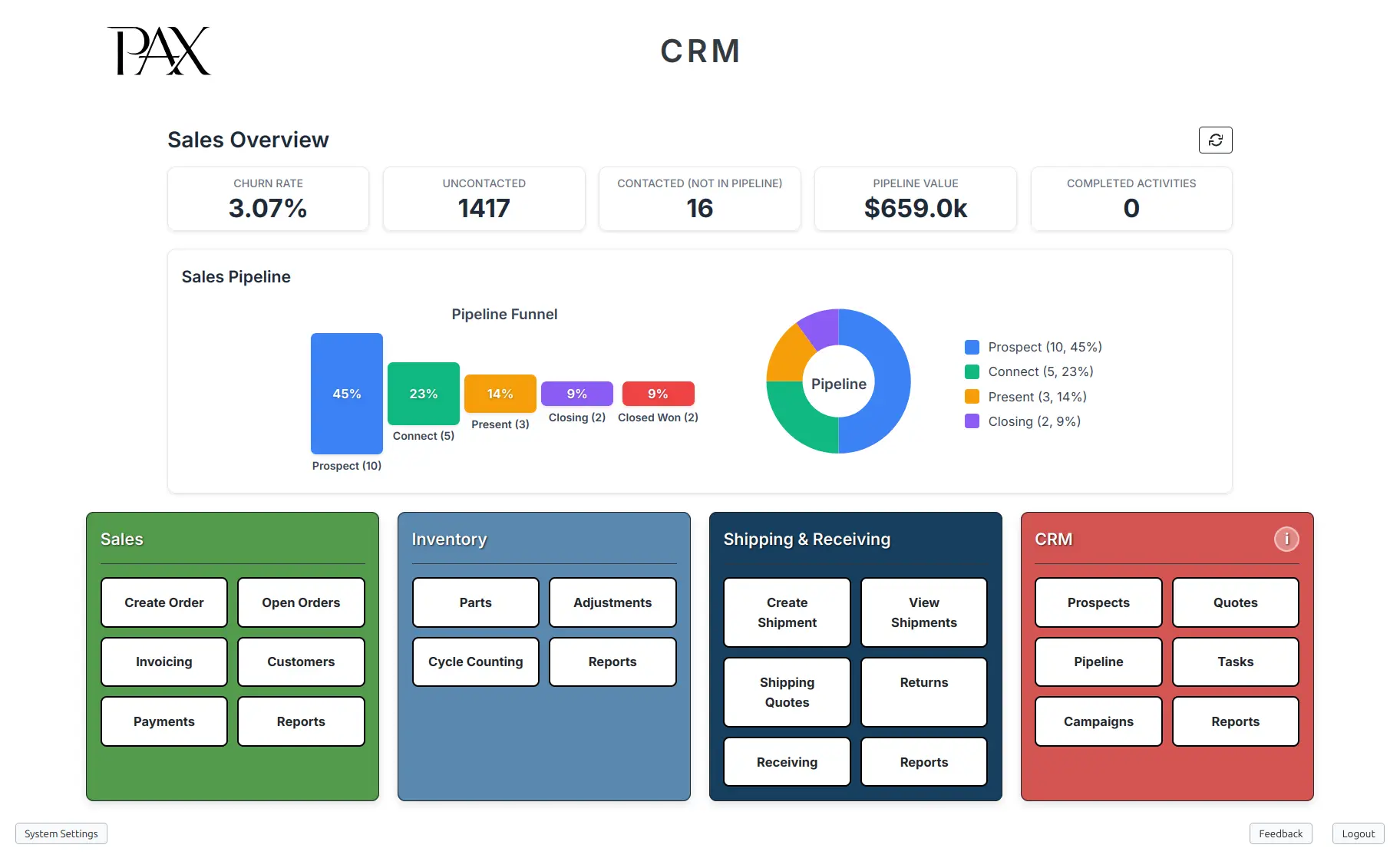
What this section is for
Use CRM to manage pre-sale work before and around the normal Sales Order workflow. CRM tracks companies that are not customers yet, quotes for customers and prospects, opportunities in the sales pipeline, tasks and completed activities, campaign recipients, sent campaign history, and CRM reports.
CRM is a launcher from the main dashboard. Opening a CRM card does not create customers, quotes, orders, activities, or emails by itself. Records change when a user saves a prospect, creates or updates a quote, converts a quote to an order, moves an opportunity, logs an activity, saves a campaign, or sends a campaign.
Screen path
Dashboard > CRM
Who can see CRM
The CRM section appears for users with one or more of these roles:
| Role | CRM access |
|---|---|
admin |
Full CRM section access. |
executive |
Full CRM section access. |
sales |
CRM section access for sales users. |
csr |
CRM section access for customer service users. |
Some CRM actions have stricter route permissions than the dashboard card. For example, campaign creation and sending are available to admin, executive, and sales users, while a csr user may still be able to view CRM reporting and history.
CRM cards
| Card | What it opens | Use it for |
|---|---|---|
Prospects |
Prospects modal |
Search prospects, filter prospect lists, add prospects, bulk upload prospects, open prospect details, and convert qualified prospects to customers. |
Quotes |
Quotes menu |
Create quotes, review open quotes, manage quote status, convert quotes to Sales Orders, and run quote reports. |
Pipeline |
Sales Pipeline - Opportunities modal |
Add opportunities, review pipeline value, move opportunities through stages, and mark opportunities won or lost. |
Tasks |
Activities & Tasks modal |
Review today's focus items, list open and completed activities, use the calendar view, create tasks, and complete follow-ups. |
Campaigns |
Campaigns menu |
Create email campaigns, save campaign drafts, send campaigns, and review sent campaign history. |
Reports |
CRM Reports menu |
Open pipeline, performance, forecasting, email log, customer contact, and missing-contact reports. |
CRM dashboard behavior
The main dashboard may also show a CRM-focused dashboard above the normal cards. Sales-only users see this CRM dashboard automatically. Admin and executive users can show or hide it from System Settings.
The CRM section header includes an info icon that opens the in-app CRM User Guide. That guide is separate from these website docs and is intended as a quick reference inside PAX.
Main workflows
- Add a prospect and maintain the prospect's addresses, contacts, notes, activities, opportunities, and quotes.
- Convert a qualified prospect to a customer.
- Create a quote for a customer or prospect.
- Manage open quotes by printing, emailing, editing, marking lost, or converting to a Sales Order.
- Add and manage opportunities in the sales pipeline.
- Create and complete CRM tasks and activities.
- Create, save, send, and review email campaigns.
- Run CRM reports to review pipeline, sales performance, forecasts, email logs, and contact completeness.
What happens behind the scenes
Opening the CRM section does not change records.
Individual CRM workflows can have important system effects:
| Workflow area | System effect |
|---|---|
| Prospects | Creates and updates prospect records, addresses, contacts, notes, activities, and opportunities. Prospect deletion is a soft delete. |
| Prospect conversion | Creates a customer, copies or moves related CRM records, marks the prospect Converted, stores the new customer code on the prospect, and logs a conversion activity. |
| Quotes | Creates quote headers and lines, generates quote PDFs, sends quote emails, logs quote email activity, and can convert approved quotes to Sales Orders. |
| Pipeline | Updates opportunity stage, probability, estimated value, owner, close date, and closed-won or closed-lost status. |
| Tasks | Creates and updates activity log records. Completing some prospect activities can move a New prospect to Contacted. |
| Campaigns | Saves campaign drafts, creates or copies campaign email templates, saves optional manual recipient selections, sends campaigns through Resend Broadcasts, and stores campaign recipient status. |
| Reports | Reports read current CRM, quote, activity, campaign, email, customer, and prospect data. Running a report normally does not change records. |
Troubleshooting
I do not see the CRM section
Likely cause: Your assigned role does not include CRM access.
Safe fix: Ask an admin to review your user roles. CRM is available to admin, executive, sales, and csr roles.
Contact support if: Your role includes CRM access but the CRM section is still missing after signing out and back in.
I see CRM cards but cannot complete an action
Likely cause: Some actions have stricter permissions, required setup, or required record status. Campaign sending also requires email configuration.
Safe fix: Read the message on screen, confirm your role, and confirm the record is still editable.
Contact support if: Your role and the record status look correct but PAX still blocks the action.
The CRM dashboard is missing above the cards
Likely cause: Sales-only users see the CRM dashboard automatically. Admin and executive users must enable the CRM dashboard setting.
Safe fix: Review the CRM dashboard setting in System Settings.
Contact support if: The setting is enabled but the CRM dashboard does not appear after closing System Settings or refreshing the page.