The Create Order screen is used to enter a new customer Sales Order with customer, address, shipping, tax, discount, and line-item details.
What this screen is for
Use Create Order when a customer has placed an order and the order should enter the normal PAX Sales Order workflow.
The screen supports both inventory lines and non-inventory lines. Inventory lines use existing inventory parts. Non-inventory lines use a description, quantity, price, and revenue account behavior without requiring an inventory part.
Do not use Create Order to force shipment, invoice posting, inventory corrections, or payment entry. Those are separate workflows.
Screen path
Dashboard > Sales > Create Order
Key areas
Customer and dates
The top of the screen identifies the customer and order timing.
| Field | Purpose |
|---|---|
Customer |
Required. Search by customer code or name, then select the customer code from the list. |
Customer PO |
Optional customer purchase order number. PAX checks for duplicates for the selected customer. |
Order Date |
Required. Defaults to today's date. |
Ship by Date |
Header-level planned ship date. New or empty lines default to this date. |
When a customer is selected, PAX loads that customer's default payment terms, shipping method, carrier account, addresses, and customer notes.
Customer notes
If the customer has notes, PAX opens a customer notes popup after the customer is selected.
If no notes are on file, PAX may show No Notes on File and ask whether to add notes. Choosing Yes, Add Notes opens the customer detail notes workflow.
Addresses
Create Order has two required address selectors:
| Address area | What it controls |
|---|---|
Bill To Address |
Billing address used on the Sales Order and reserved invoice. |
Ship To Address |
Shipping destination used for order documents and sales tax calculation. |
Each address selector includes Create New Address and Edit Address. A newly created address is selected automatically after it is saved.
Order header details
These fields control commercial, shipping, discount, tax, and note details for the order.
| Field | Purpose |
|---|---|
Payment Terms |
Required. Defaults from the selected customer when available. |
Shipping Method |
Optional shipping method. Searchable by method, carrier, or charge type. |
Carrier Account |
Carrier account number. Required when the selected shipping method uses a customer account charge type. |
FOB / Incoterms |
Domestic FOB or Incoterms value for the order. Defaults to FOB ORIG. |
Order Discount (%) |
Applies the same discount percentage to all lines. |
Customer Shipping Charge |
Shipping amount charged to the customer. Disabled when all lines are non-inventory lines. |
Sales Tax |
Auto-calculated from customer, ship-to address, taxable amount, and shipping charge. Can be switched to manual entry with Manual override. |
Header Notes |
Order-level notes that print with the order and carry to the reserved invoice header. |
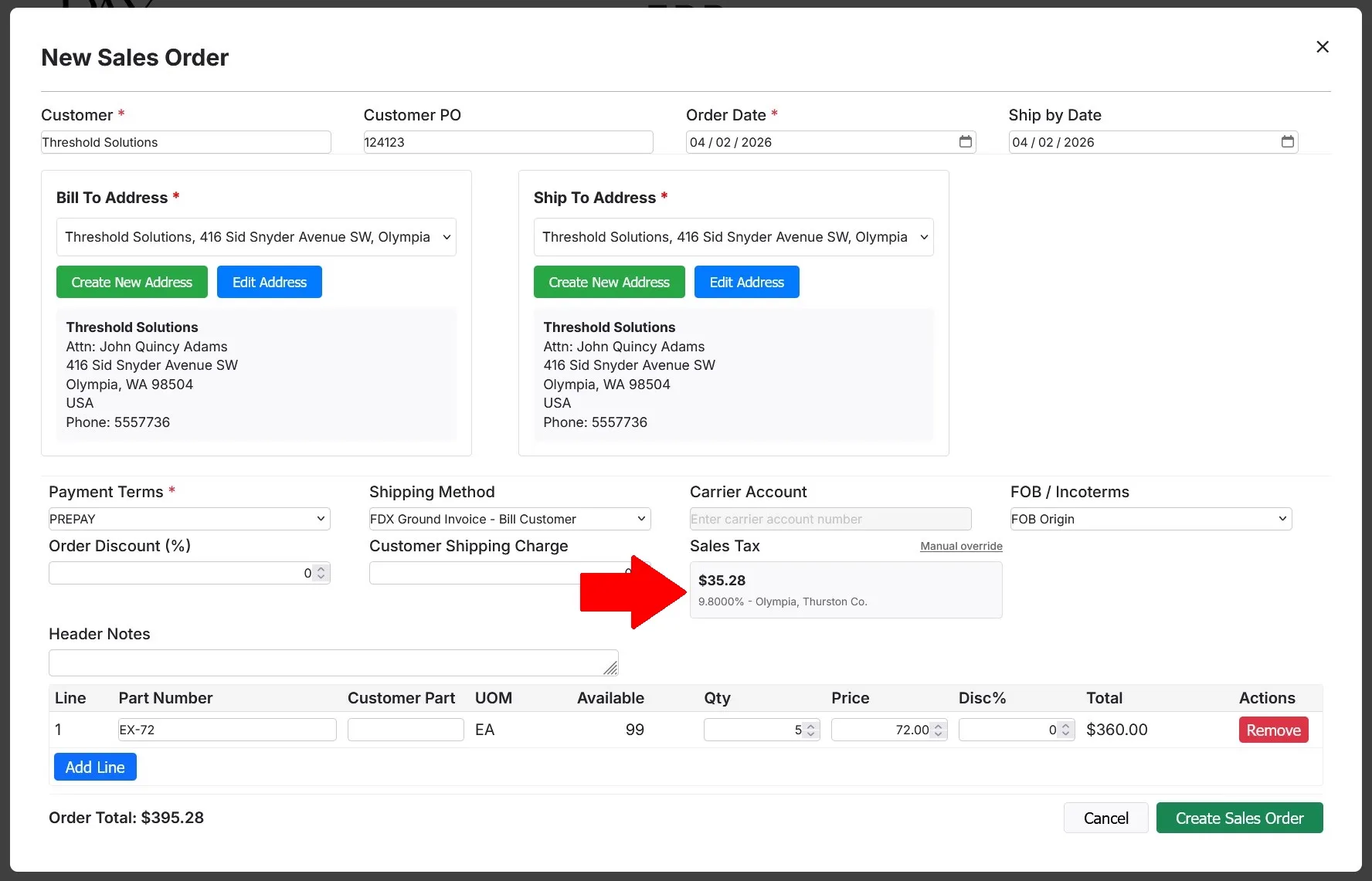
Line items
The line table is where the order detail is entered.
| Column or field | Purpose |
|---|---|
Line |
Line number. PAX renumbers remaining lines when a removable line is removed. |
Type |
Inventory or Non-Inventory. |
Part / Description |
Inventory part number, or a non-inventory description or fee name. |
Customer Part |
Customer-specific part number, filled automatically when a customer-part cross reference exists. |
UOM |
Unit of measure from inventory, or EA for non-inventory lines. |
On Hand |
Current on-hand quantity for the selected inventory part. |
Qty |
Required quantity. Must be greater than zero. |
Price |
Unit price. Inventory lines default from the customer price tier when available. |
Disc% |
Line discount. Locked when an order-level discount is active. |
Total |
Calculated line total after discount. |
Ship date |
Planned ship date for the line. |
Notes |
Optional line note that prints on the order. |
Use Add Line to add another line. Use Remove to remove a line when more than one line exists.
Main actions
Create Order: Validates and saves the Sales Order. After the order is created, PAX showsSales Order Createdand opens the order PDF in a new browser tab.Cancel: Closes the screen without saving the order.Add Line: Adds a new line with the next line number.Remove: Removes a line when the order has more than one line.Manual override: Switches Sales Tax from automatic calculation to manual entry.Auto-calculate: Switches Sales Tax back to automatic calculation.Create New Address: Adds a new bill-to or ship-to address for the selected customer.Edit Address: Edits the selected bill-to or ship-to address.
Important fields and statuses
| Field or status | Meaning | Notes |
|---|---|---|
Customer |
The customer for the order. | Required before saving. The customer code is the selected value even when the search box displays a name. |
Bill To Address |
Billing address. | Required before saving. |
Ship To Address |
Shipping destination. | Required before saving and used for sales tax calculation. |
Payment Terms |
Invoice due-date terms. | Required before saving. |
Customer PO duplicate warning |
The same customer already has an order with that PO number. | Review the listed orders before choosing Continue. |
Inventory line |
A line tied to an inventory part. | Requires a valid part number and quantity greater than zero. |
Non-Inventory line |
A fee, service, or other non-stock line. | Requires a description and quantity greater than zero. It does not require an inventory part. |
Part not found in inventory |
The entered inventory part does not match an inventory item. | The order cannot be saved until the part is corrected or the line is changed to non-inventory. |
Order Discount (%) |
Order-wide discount. | When greater than zero, every line uses the same discount and line-level discount fields are locked. |
Customer Shipping Charge |
Shipping amount charged to the customer. | Forced to zero when all order lines are non-inventory. Use a non-inventory line to bill a non-inventory shipping or fee amount. |
Sales Tax |
Tax amount for the order. | Auto-calculated unless manual override is active. |
Open |
Default order and line status on creation. | Shipment or fulfillment later changes line and header status. |
Saving... |
The order is being submitted. | Wait for PAX to finish. Do not close the browser tab while saving. |
What happens behind the scenes
When the order is saved, PAX validates required fields, line quantities, valid inventory part numbers, carrier account requirements, and discount limits.
PAX saves the Sales Order header and lines together. If saving fails, the order is not partially created.
PAX also reserves a pending invoice for the order. The pending invoice receives an invoice number, customer, invoice date, due date based on payment terms, bill-to address, tax, and header notes. It does not receive invoice lines at order creation. Invoice lines are added later when inventory is shipped or when non-inventory lines are fulfilled.
Order creation does not post revenue, cost of goods sold, cash, accounts receivable, inventory asset relief, or payment journal entries. Revenue and inventory accounting happen later in the shipping, fulfillment, invoicing, and payment workflows.
Inventory order lines create open customer demand. PAX's inventory availability uses open Sales Order requirements when calculating available quantity. No lot quantity is removed until shipment.
Non-inventory lines do not move inventory, consume lots, or create shipment lines. If a non-inventory line does not already include a revenue account, PAX uses the active GL transaction configuration for other revenue based on the payment terms.
Troubleshooting
Customer is required
Likely cause: No customer code has been selected.
Safe fix: Use the Customer search box and select the customer code from the list.
Contact support if: The customer exists but does not appear in the search list.
Bill-to or ship-to address is required
Likely cause: The selected customer does not have a usable selected address, or no address was selected.
Safe fix: Choose an address from Bill To Address and Ship To Address, or use Create New Address.
Contact support if: Saved customer addresses do not appear after refreshing the address list.
Carrier account number is required for this shipping method
Likely cause: The selected shipping method uses the customer's carrier account.
Safe fix: Enter the carrier account number or choose a shipping method that does not require a customer account.
Contact support if: The account number is correct but PAX says it is already being used by another customer.
Part not found in inventory
Likely cause: The line is set to Inventory, but the entered part number does not match an inventory part.
Safe fix: Select the part from the part list, correct the part number, or change the line to Non-Inventory if this is not an inventory item.
Contact support if: The part is active in inventory but Create Order still marks it invalid.
Line discounts cannot be changed
Likely cause: Order Discount (%) is greater than zero.
Safe fix: Set Order Discount (%) to 0 if the order should use line-specific discounts.
Contact support if: The line discount remains locked after the order discount is removed.
Duplicate PO Number appears
Likely cause: The selected customer already has a Sales Order with the same Customer PO.
Safe fix: Review the listed order numbers. Use Print Order if needed, then choose Cancel to correct the PO or Continue if the duplicate is intentional.
Contact support if: The duplicate list appears incorrect.
No tax rate found
Likely cause: PAX could not find a matching tax rate for the selected customer and ship-to address.
Safe fix: Confirm the ship-to address, then use Manual override only if the tax amount is known and approved by your company's process.
Contact support if: The address is correct and a tax rate should exist.
PDF does not open after order creation
Likely cause: The browser blocked the new tab, or PDF generation failed.
Safe fix: Allow popups for PAX and print the order from Open Orders.
Contact support if: The order was created but the PDF cannot be generated from Open Orders.