The dashboard is the main PAX home screen where users open the ERP and CRM areas available to their role.
What this screen is for
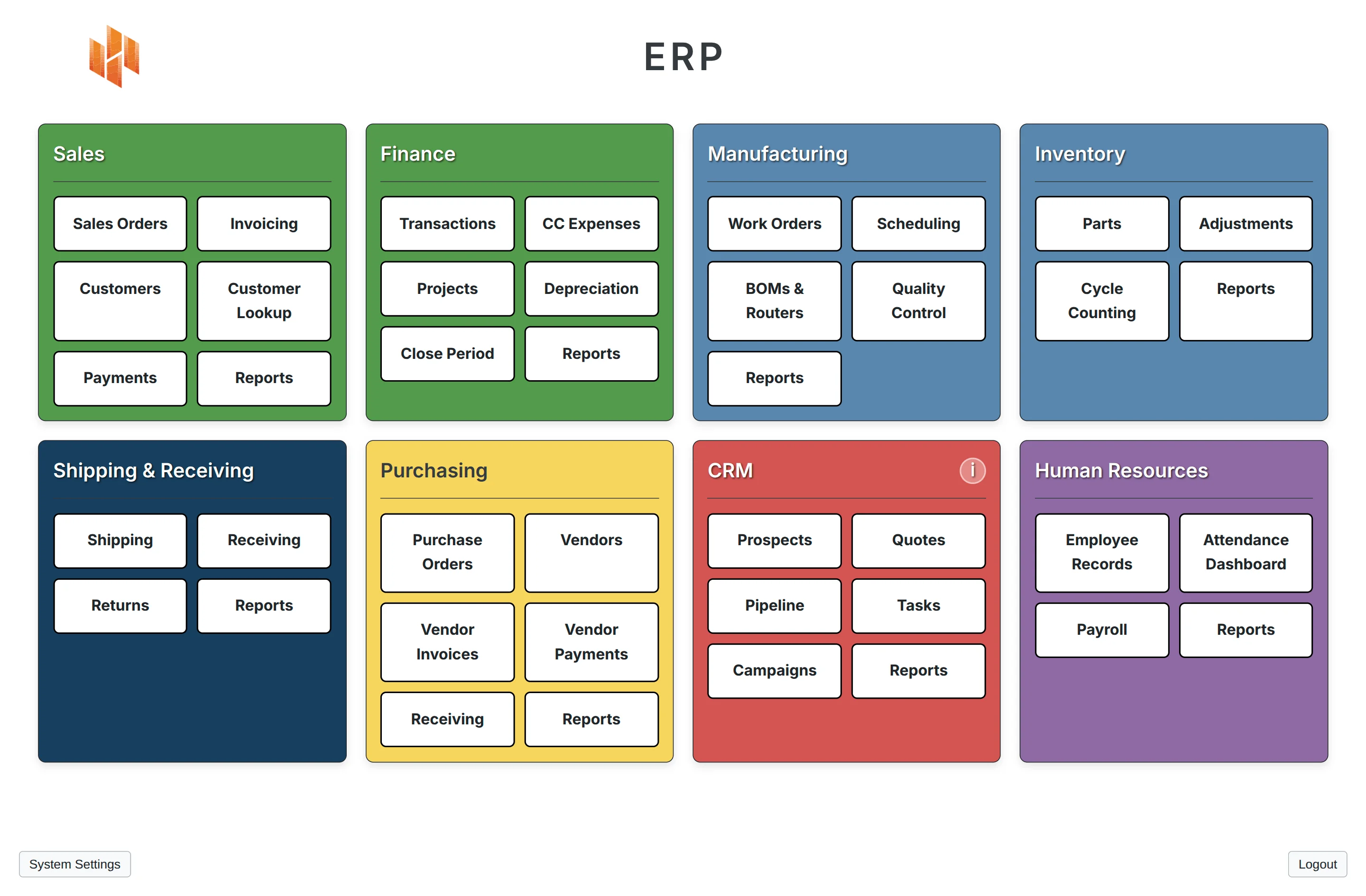
The dashboard is a launcher for PAX work areas. It groups the system into sections such as Sales, Finance, Manufacturing, Inventory, Shipping & Receiving, Purchasing, CRM, and Human Resources.
Most users who sign in land on this main dashboard. Floor users are different: they are sent to the shop dashboard instead of the main ERP dashboard.
Accounting, inventory, shipping, and receiving changes happen inside the workflows opened from the dashboard cards. Users can also mark a PO acknowledged or snooze its reminder directly from Notifications on the dashboard.
Screen path
Login > Dashboard
Key areas
Header
The top of the dashboard can show the tenant's configured logo. The main title usually says ERP.
Users who have the sales role and do not also have admin or executive see CRM as the dashboard title.
Notifications
The Notifications button shows a red dot when an item needs your attention.
If an Issued PO remains unacknowledged for 48 hours, PAX shows a reminder to the user who created it.
Mark acknowledgedconfirms that the vendor received the PO and clears the reminder.Not yet — remind me in 48 hourshides the reminder for another 48 hours.Open POopens the PO editor.
Opening the notification list does not clear reminders. Acknowledging, closing, or cancelling the PO clears its active reminder. Reminders appear inside PAX and do not send emails or open automatically.
Sales Overview
Some users see a Sales Overview panel above the module cards.
Sales users who are not admin or executive users see it automatically. Admin and executive users can show or hide it with the CRM dashboard setting in System Settings.
The Sales Overview panel includes:
| Area | What it shows |
|---|---|
Churn Rate |
Customer churn rate for the dashboard data returned by PAX. |
Uncontacted |
Prospects that have never been contacted. |
Contacted (Not in Pipeline) |
Prospects that have been contacted but do not have an opportunity. |
Pipeline Value |
Opportunity value for the logged-in user's pipeline data. |
Completed Activities |
CRM activities completed today. |
Sales Pipeline |
A funnel, pie chart, and legend for pipeline stages. |
The refresh button in this panel reloads the Sales Overview data.
Module sections
The main area of the dashboard is a grid of sections. Each section contains cards. Selecting a card opens the matching work area, report menu, or modal.
The dashboard uses the exact section and card labels below.
| Section | Cards |
|---|---|
Sales |
Create Order, Open Orders, Invoicing, Customers, Payments, Reports |
Finance |
Receivables, Payables, Banking, Credit Cards, GL & Close, Reports |
Manufacturing |
Work Orders, Issue Materials, BOMs, Routers, Log Labor / WIP to FG, Reports |
Inventory |
Parts, Adjustments, Cycle Counting, Reports |
Shipping & Receiving |
Create Shipment, View Shipments, Shipping Quotes, Returns, Receiving, Reports |
Purchasing |
Purchase Orders, Vendors, Vendor Invoices, Vendor Payments, Receiving, Reports |
CRM |
Prospects, Quotes, Pipeline, Tasks, Campaigns, Reports |
Human Resources |
Employee Records, Attendance Dashboard, Payroll, Reports |
CRM User Guide
The CRM section has an info icon in its heading. Selecting it opens the CRM User Guide. The guide currently covers Prospects, Quotes, Pipeline, Tasks, and Campaigns.
System Settings
The System Settings button appears in the lower-left corner when the logged-in user's roles allow it.
Admin and executive users can use System Settings for company, CRM dashboard, communication, lookup, accounting, and operations settings. CSR and sales users can access staff-level settings such as Email Templates. Manufacturing users do not see System Settings unless they also have the admin or executive role.
Feedback
The Feedback button opens a form for Feature Request or Bug Report. See Feedback Overview.
For bug reports, PAX can capture a screenshot if the browser supports screen capture and the user allows it.
Paxy AI
Users on the main dashboard see the Paxy launcher unless they are signed in with a shop-floor account. Selecting it opens Paxy, the AI assistant for PAX workflow or system help and authorized read-only data questions.
Admin and executive users can ask data questions. CSR, sales, and manufacturing users can ask workflow or system help questions, but Paxy will not look up or calculate tenant data for those roles.
If Paxy finishes answering while the panel is closed, the launcher shows a red notification badge.
Logout
The Logout button signs the user out and returns them to the login page.
How role access changes the dashboard
PAX filters dashboard sections by role. If a user has more than one role, PAX combines the access from those roles.
| Role | Sections shown on the main dashboard |
|---|---|
admin |
Sales, Finance, Manufacturing, Inventory, Shipping & Receiving, Purchasing, CRM, Human Resources |
executive |
Sales, Finance, Manufacturing, Inventory, Shipping & Receiving, Purchasing, CRM, Human Resources |
csr |
Sales, Inventory, Shipping & Receiving, CRM |
sales |
Sales, Inventory, CRM |
manufacturing |
Manufacturing, Inventory, Shipping & Receiving, Purchasing |
floor |
Floor users go to the shop dashboard instead of this main dashboard. |
Multi-role users see the union of their role access. For example, a user with both csr and manufacturing roles sees the sections allowed by both roles.
Main actions
- Select a module card to open that work area.
- Select
Notificationsto review reminders, mark a PO acknowledged, snooze a reminder for 48 hours, or open the PO editor. - Select the
CRMsection info icon to open the CRM User Guide. - Select the Sales Overview refresh button to reload dashboard metrics.
- Select the
Sales Pipelinefunnel or chart to open the CRM pipeline view. - Select
System Settingsto manage settings available to your role. - Select
Feedbackto send a feature request or bug report. - Select the Paxy launcher to ask a workflow or system help question, or an authorized data question if you have admin or executive access.
- Select
Logoutto sign out.
Open dashboard modals can be closed with their close button. The dashboard also listens for the Escape key to close the active modal.
Important fields and statuses
| Field or status | Meaning | Notes |
|---|---|---|
| Hidden section | The logged-in user's roles do not include access to that section. | Ask an admin to review the user's assigned roles if the section should be visible. |
N/A in Sales Overview |
PAX did not receive a value for that metric. | Refresh the Sales Overview panel. If it remains N/A, report the issue with the metric name. |
| Paxy red badge | Paxy finished an answer while the panel was closed. | Open Paxy to view the answer. |
role not allowed |
The user is signed in but their role is not allowed on the requested route. | Sign out and back in, or ask an admin to review the user's role setup. |
What happens behind the scenes
When the dashboard opens, PAX checks the logged-in user's session and roles. It uses those roles to decide which sections and controls to display.
The dashboard also loads tenant configuration so the company logo can appear when one is configured. If the user can see the Sales section, PAX preloads some Create Order data in the background so opening that card is faster.
Opening the dashboard does not create journal entries, update inventory, change lots, create orders, send emails, or post records. Individual module workflows can have accounting, inventory, costing, lot traceability, status, and audit effects; those effects should be documented on the workflow page for the action being performed.
Troubleshooting
I do not see a section I expected
Likely cause: Your assigned roles do not include access to that section, or you are using a floor account that goes to the shop dashboard.
Safe fix: Ask an admin to review your assigned roles. Include the section name you expected to see.
Contact support if: The admin confirms your roles are correct but the section is still missing after signing out and back in.
The Sales Overview panel is missing
Likely cause: Sales Overview is automatic for sales users who are not admin or executive users. Admin and executive users only see it when the CRM dashboard setting is enabled.
Safe fix: Admin or executive users can open System Settings and use the CRM dashboard setting.
Contact support if: The setting is enabled but Sales Overview still does not appear after closing System Settings or refreshing the page.
I do not see Paxy
Likely cause: You are signed in with a floor account, or your account does not have one of the Paxy-enabled main-dashboard roles.
Safe fix: Use standard PAX docs or reports from the modules available to you, or ask an admin to review your assigned roles. Ask an admin or executive user to run a data question if appropriate.
Contact support if: You have admin, executive, csr, sales, or manufacturing access and the Paxy launcher is missing.
A dashboard card does not open anything
Likely cause: The card may not be connected to a work area yet, or the browser may have a stale session.
Safe fix: Sign out and back in, then try the card again. If it still does not open, send a bug report with the section name and card name.
Use this format:
Dashboard section:
Card clicked:
What happened:
Expected screen:
Date/time:
User:
Screenshot attached: Yes/No